
YouTube Shorts are really a time-wasting nuisance for me. They clutter my Home feed and have no real value for life. Many people, especially children, endlessly scroll through short-form videos, wasting their time and energy. Fortunately, Google has now introduced a “Time Management” feature that lets you hide Shorts from your Home feed and set daily scrolling limits.

In this guide, let us learn how to remove Shorts from YouTube Home feed and implement parental controls to manage your family’s YouTube usage effectively.
Why Users Want to Hide YouTube Shorts
Many YouTube users have expressed frustration with Shorts appearing on their Home feed due to aesthetic preferences for classic full-length videos and a clutter-free interface, time management concerns about the addictive nature of endless scrolling, and worries about focus and productivity being derailed.
Parents are particularly concerned about children spending excessive time doomscrolling through Shorts instead of engaging with more substantive content.
Google’s new Time Management feature directly addresses these concerns by giving users granular control over their Shorts consumption, helping them reclaim both their viewing experience and their time.
How to Hide YouTube Shorts: Step-by-Step Guide
Follow these simple steps to remove Shorts from your Home feed and set scrolling limits:
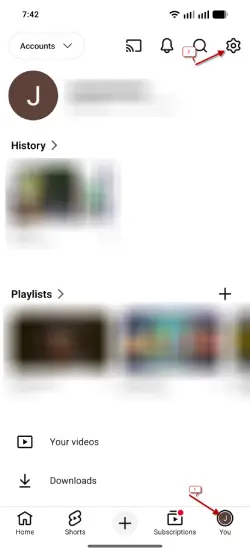
Step 1: Open the YouTube app on your smartphone and tap the “You” button or profile icon in the bottom-right corner of the screen.
Step 2: Tap the “Settings” icon (gear/cog symbol) located at the top-right corner of the screen.
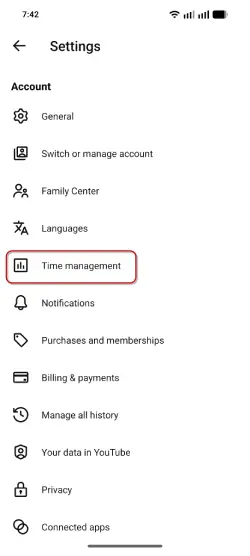
Step 3: Look for the “Time Management” option in the Settings menu and tap it.
Step 4: Scroll down to the “Daily Limits” section. You’ll find a toggle option labeled “Shorts Feed limit.”
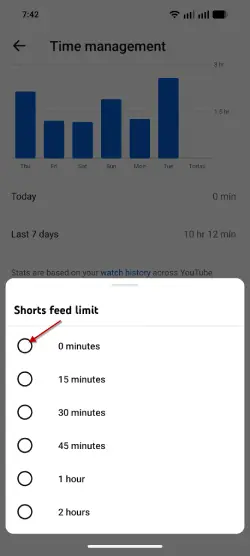
Step 5: Toggle the “Shorts Feed limit” option to ON. A flyout menu will appear asking you to select a time interval.
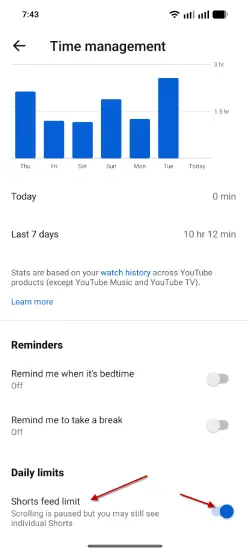
Step 6: From the time options, select “0 minutes.” This prevents you from scrolling through the Shorts feed entirely.
Note that YouTube’s time management feature reduces passive scrolling by hiding Shorts from your Home feed and enforcing daily time limits on Shorts feed access, with reminder notifications when you hit your limit. However, it doesn’t completely block Shorts—you can still access them through the dedicated Shorts tab, search for specific videos, or click external links.
FAQ
Q: Will hiding Shorts affect my recommendations?
A: No. This feature only impacts the visibility of Shorts on your Home feed and your ability to scroll the Shorts feed. It doesn’t change YouTube’s recommendation algorithm.
Q: Can I hide Shorts but still allow certain creators?
A: The current feature doesn’t offer this level of granularity. It’s an all-or-nothing approach to Shorts feed access.
Q: Does this work on desktop YouTube?
A: This Time Management feature is currently available only in the YouTube mobile app. Desktop users don’t have the same Shorts management options.
Q: Can my kids bypass this restriction?
A: If they have access to Settings, they can toggle the feature off. For stricter parental controls, consider using device-level parental control apps or family management features.
Conclusion
YouTube Shorts don’t have to dominate your feed or your family’s screen time. With Google’s Time Management feature, you have the power to reclaim control over your YouTube experience. Whether you want a cleaner Home feed or you’re implementing digital wellness boundaries for your children, the process takes just minutes to set up.
Start with the step-by-step guide above, customize your settings to match your needs, and enjoy a more intentional YouTube experience. And remember—if you ever change your mind, re-enabling Shorts is just as simple as disabling them.