
Android Auto intentionally blocks video playback while driving to prevent distracted driving accidents. This is a critical safety feature designed to protect you and other road users. However, if you’re parked or a passenger wants entertainment, there are legitimate workarounds available.
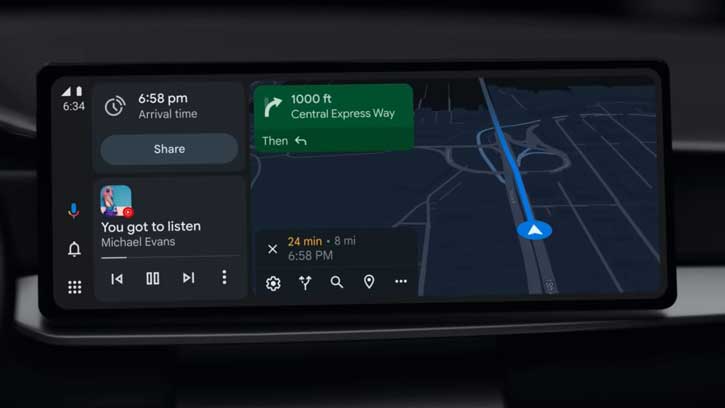
In this guide, let us learn how to play YouTube videos in Android Auto. All you need to enable Developer Settings in Android Auto and installing a third-party AABrowser app for browsing YouTube website.
Important Disclaimer: While this guide explains how to play YouTube videos through Android Auto, we strongly recommend that drivers do not watch videos while operating a vehicle. Video playback should only occur when the car is stationary. Always prioritize road safety.
Requirements to Play YouTube Videos in Android Auto
- A smartphone running Android 15 or later
Android Auto installed on your device
An internet connection
A compatible car head unit with Android Auto support
About 10 minutes to complete the setup process
Step-by-Step Guide to Enable YouTube on Android Auto
Step 1: Enable Developer Settings in Android Auto
Open the Android Auto application on your phone and repeatedly tap the version number at the bottom of the screen. This will unlock Developer Settings—a hidden menu designed for advanced users.
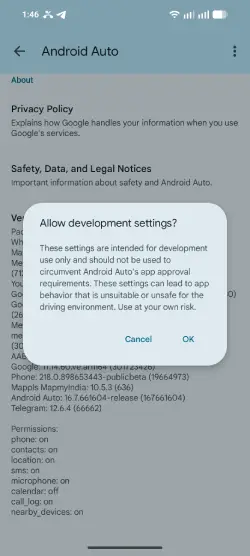
Step 2: Access Developer Settings
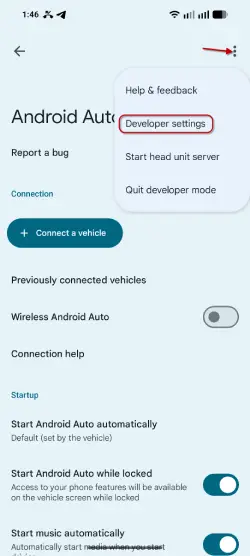
Once Developer Options are enabled, tap the vertical three-dot menu in the top-right corner and select Developer Settings from the dropdown menu.
Step 3: Enable Unknown Sources
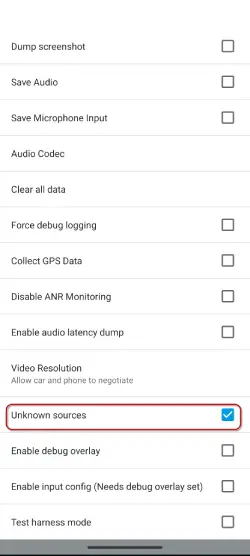
Scroll down through the Developer Settings menu until you find the “Unknown sources” option. Enable this toggle. This setting allows you to install applications from sources other than the Google Play Store.
Step 4: Download AABrowser APK
Visit the GitHub repository for AABrowser and download the latest APK file to your phone. AABrowser is a third-party browser specifically designed to work seamlessly with Android Auto.
Step 5: Install the APK File
After downloading, you may receive a prompt asking for permission to “Install unknown apps.” Navigate to your phone’s Settings, find the application requesting installation permission, and enable the “Install unknown apps” option. Once granted, complete the AABrowser installation.
Step 6: Connect Your Phone to Your Car
Connect your smartphone to your car’s head unit via USB cable or wireless Android Auto connection, depending on your vehicle’s setup.
Step 7: Launch AABrowser
From your car’s Android Auto apps list, select AABrowser to launch the third-party browser.
Step 8: Navigate to YouTube
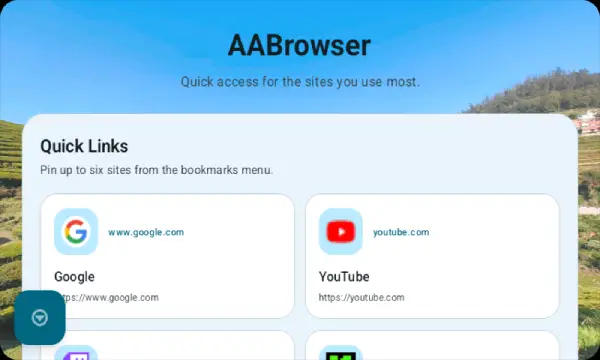
Use the browser’s bookmarks or search functionality to access the YouTube website. AABrowser includes a dedicated YouTube shortcut for quick access.
Step 9: Start Watching
Browse your favorite videos and start streaming directly to your car’s display.

How to Play YouTube Videos While Driving in Android Auto
Playing YouTube videos while driving in Android Auto requires a workaround. Without it, you can only play videos while parked with the hand brake activated. Here is the solution:
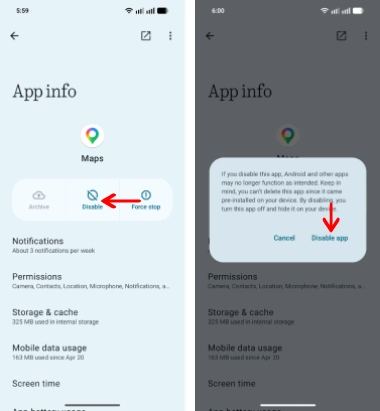
- On your Android phone, long-tap the Google Maps icon and tap the info (i) button.
Tap Disable to turn off Maps.
Connect your phone to Android Auto and start playing a YouTube video in parking mode.
Begin driving, and the YouTube video will continue playing.
Important Safety Reminders
Do not watch videos while driving. This workaround should only be used when your vehicle is parked or when you’re a passenger. Watching videos behind the wheel is dangerous and may be illegal in your jurisdiction.
Conclusion
Playing YouTube videos on Android Auto is now possible thanks to third-party browsers like AABrowser, even though Google restricts native video playback. By enabling Developer Options and installing a compatible browser, you can enjoy video entertainment in your car—but always remember to prioritize safety first.