

Gemini AI chatbot now lets you send WhatsApp messages hands-free. By connecting WhatsApp to Gemini Personal Intelligence, you can send messages, call your contacts, and send status updates directly from Gemini. The most important use case for this feature is in Android Auto, which means you can send WhatsApp messages while driving.
Learn how to connect WhatsApp with Gemini to send messages completely hands-free, even while driving. Once the connection is set up, you won’t need to open WhatsApp on your phone. Simply ask Gemini what you want to do in WhatsApp, and it will handle it for you—all hands-free.
Currently, this feature is available on Android devices only. iPhone users may wait for an update to enable WhatsApp integration with Gemini Personal Intelligence.
How to Connect WhatsApp to Gemini
1. First, update WhatsApp and Gemini app to the latest version.
2. After updating, launch the Gemini app on your Android phone.
3. Tap your profile picture at the top right and select Personal Intelligence. If you can’t find the Personal Intelligence option, tap Settings to locate it.
4. Next, tap Connected Apps, scroll down until you see WhatsApp in the list, and tap the toggle switch to turn on the feature.
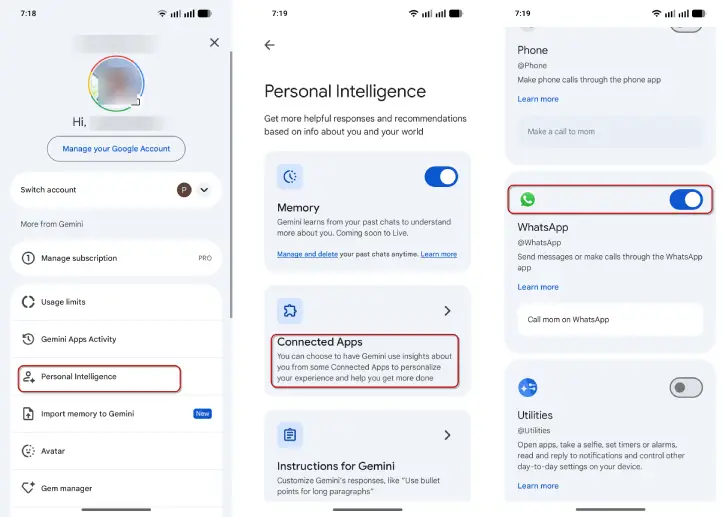
You have now connected WhatsApp to Gemini on your Android phone. Now let us know how to use Gemini as your personal assistant for WhatsApp.
How to Send Messages in WhatsApp via Gemini
After integration with Gemini, you can use the example prompts given here:
- “Send a message to [contact name] on WhatsApp” – Gemini will prompt you to dictate the message.
“Read my recent WhatsApp messages” – Gemini will read your latest messages aloud.
“Check WhatsApp” – Gemini will summarize your unread messages.
“Reply to [contact name]” – You can dictate your response hands-free.
“Tell [contact name] on WhatsApp that I will call them after 2PM” – Gemini will send your message.
“Message [contact name] on WhatsApp and ask if they are free this Saturday” – Gemini ask your contact about it.
“Call [contact name] on WhatsApp” – Gemini will call the person.
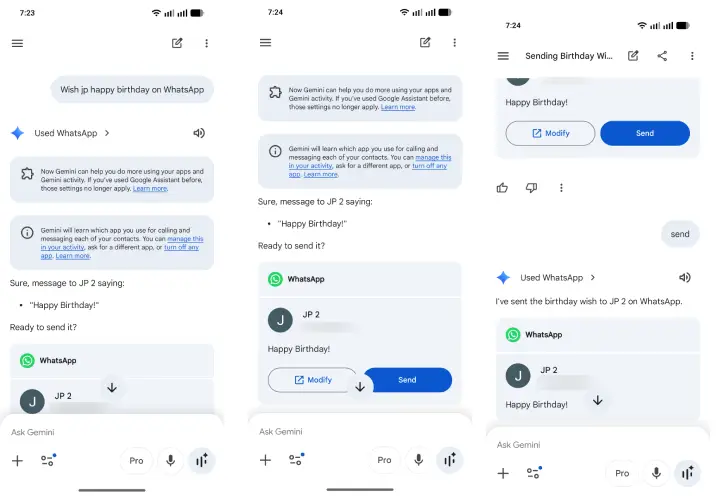
IMPORTANT: Gemini shows you a preview of your message before sending it. You can see who you’re sending it to and what it says. You have to approve it before it actually gets sent – nothing goes out without your permission, so safe to use the feature.
ALSO READ: Gemini AI Access Your WhatsApp, Phone, Messages and More: How to Turn Off It on Android
How to Use the Feature in Android Auto While Driving
WhatsApp integration with Gemini works best in Android Auto, letting you send messages hands-free while keeping your eyes on the road.
How It Works
Simply press the mic icon on your car display or the voice button on your steering wheel, then say your message. For example: “Send a WhatsApp to John that I’m running 30 minutes late.” Your car shows the message for confirmation, and once you approve it, it sends automatically—no typing needed.
Safety First
Use this feature only with voice commands when driving. If you need to write a longer or more complex message, pull over safely first. Always prioritize safe driving over convenience.