
Google Chrome’s automatic installation of the Gemini Nano AI model has become a point of frustration for many users, particularly those with limited storage space. This offline AI model—stored in a file called weights.bin—consumes approximately 4GB of disk space without explicit user consent during installation.
While Gemini Nano powers genuinely useful features like writing assistance, intelligent tab organization, scam detection, and summary generation, not every user wants these AI capabilities enabled by default. If you’re concerned about storage space or prefer to minimize AI tracking, this guide will show you how to permanently remove weights.bin and disable Gemini Nano from Chrome on Windows 11.
What Is Gemini Nano and weights.bin?
Gemini Nano is Google’s lightweight AI model designed to run directly on your device without sending data to Google’s servers. The weights.bin file is the core component containing the neural network weights that power this AI model.
Why Chrome Downloads It Automatically
Google includes Gemini Nano by default because:
- On-device processing keeps user data private (no cloud transmission)
AI-powered features enhance user experience (writing suggestions, tab management)
Offline functionality allows AI features to work without internet connectivity
However, this approach prioritizes convenience over user choice, which is why many users feel blindsided by the 4GB storage drain.
The Problem: It Reinstalls Itself
Simply deleting the weights.bin file won’t permanently solve the problem. Chrome will automatically re-download it if the underlying AI features remain enabled. To truly remove it, you must disable the Chrome features that depend on it.
How to Disable Gemini Nano and Remove weights.bin (Windows 11)
Follow these steps carefully to permanently disable Gemini Nano and reclaim your storage space.
Step 1: Open Chrome Experimental Flags
- Launch Google Chrome on your Windows 11 system.
In the address bar, typechrome://flagsand press Enter.
You’ll see Chrome’s experimental features menu.
Step 2: Disable Optimization Guide On-Device
- In the search box at the top, type “guide”.
Look for the flag labeled “Enables optimization guide on-device“.
Click the dropdown menu next to it and select “Disabled”.
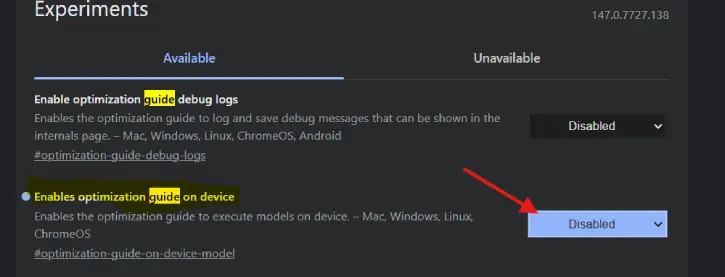
This disables the primary feature that manages on-device AI models in Chrome.
Step 3: Disable Both Prompt API Features
- In the same flags search box, type “Prompt API”.
You should see two related flags:
“Prompt API for Gemini Nano”
“Prompt API for Gemini Nano with Multimodal Input”
Click the dropdown for each and select “Disabled” for both.
These flags control the API that allows websites and Chrome features to access Gemini Nano.
Step 4: Relaunch Chrome
- Click the “Relaunch” button that appears at the bottom right of the Chrome window, or close and reopen Chrome manually.
Chrome will restart with the new flag settings applied.
Step 5: Locate and Delete the weights.bin File
- Open File Explorer on Windows 11.
Navigate to the following path:C:\Users\[YourUsername]\AppData\Local\Google\Chrome\OptGuideOnDeviceModel
Replace [YourUsername] with your actual Windows username.
Look for the weights.bin file in this folder.
Right-click on weights.bin and select “Delete”.
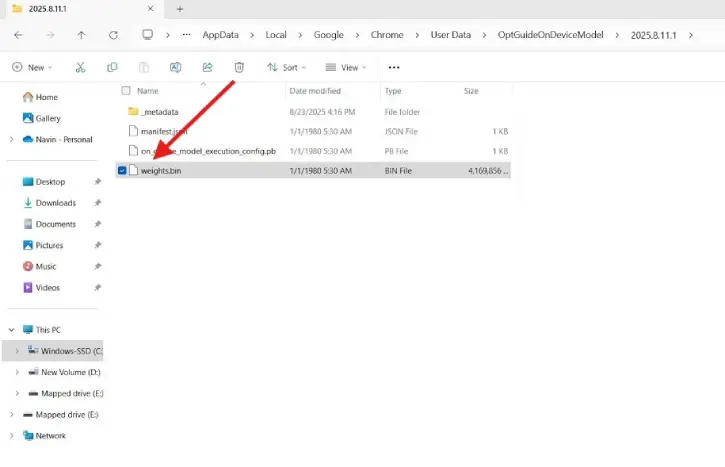
Note: The AppData folder is hidden by default. If you can’t see it, enable “Show hidden files” in File Explorer’s View settings.
Step 6: Verify Gemini Nano Is Disabled
- Restart Chrome completely.
Return to chrome://flags and verify that all three settings remain disabled.
Check the OptGuideOnDeviceModel folder again—the weights.bin file should not reappear after a few days of Chrome usage.
What Chrome Features Will Be Disabled?
Disabling Gemini Nano removes access to these Chrome AI features:
- Writing Assistance: Grammar and tone suggestions in text fields
Tab Organization: AI-powered tab grouping and management
Scam Detection: On-device analysis of suspicious websites
Summary Generation: AI-generated summaries of long web content
If you rely on any of these features, you may want to reconsider disabling Gemini Nano entirely.
Storage Space Reclaimed
By successfully removing the weights.bin file, you’ll free up approximately 4GB of storage space on your Windows 11 system. For users with limited SSD capacity or frequent storage warnings, this can be a meaningful improvement.
Troubleshooting
Weights.bin keeps reappearing: If the file re-downloads after following these steps, ensure you’ve disabled all three flags (Optimization Guide, Prompt API, and Prompt API Multimodal) and restarted Chrome.
Can’t find AppData folder: Enable “Show hidden files” in File Explorer by going to View ? Show ? Hidden items.
Want to re-enable Gemini Nano later: Return to chrome://flags, set all three flags back to “Enabled” (or “Default”), and restart Chrome. The weights.bin file will re-download automatically.
Privacy and Security Considerations
While Gemini Nano processes data on-device (rather than sending it to Google servers), some users prefer to minimize AI processing entirely. Disabling it gives you:
- Full control over your system resources
Reduced background activity and potential battery drain
Smaller attack surface (fewer Chrome subsystems running)
However, on-device AI is generally more private than cloud-based AI, so disabling Gemini Nano isn’t necessary purely for privacy reasons.
Conclusion
Removing Gemini Nano and the weights.bin file from Chrome is straightforward once you know which flags to disable. By following these six steps, you can permanently eliminate the 4GB AI model from your Windows 11 system and prevent Chrome from reinstalling it.
If you have limited storage, prioritize Chrome AI features, or simply want greater control over your system, this guide provides a safe, reversible solution. Remember that you can re-enable Gemini Nano at any time by reversing these steps. (Source)