Download Bing’s Best 3 theme pack for Windows 7
Bing’s Best 3 is the latest theme pack released by Microsoft for Windows 7. Bing (Microsoft’s search engine) displays stunning images on its homepage which I think most people love.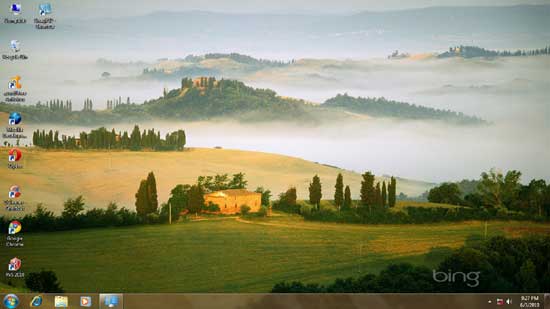

Bing’s Best 3 is the latest theme pack released by Microsoft for Windows 7. Bing (Microsoft’s search engine) displays stunning images on its homepage which I think most people love.
There could be several reasons to hide the taskbar in Windows. For instance, sometimes you may want to suddenly hide all minimized windows, or you love a clean desktop, etc.
Yes, of course you can always use the Windows ‘Auto hide’ feature to hide the taskbar and it will re-appear only when you place the mouse bottom of the desktop. But, here is a simple utility with a difference for hiding the taskbar in Windows 7.
Except taskbar all other part of Windows 7 has drop shadows. If you wish to have shadow effect on your taskbar also, here is a simple solution.
Taskbar Drop Shadow is a tiny, portable and non intrusive (no tray icon) application which adds a drop shadow to your taskbar.
Windows 7 Presentation Mode is available in Laptops only; it is disabled in Desktop PCs by default. However, a slight alteration in the registry will bring this mode in Desktop PCs also.
What is Presentation Mode? This mode lets users easily turn on their laptop & projector screen at the same time by simply pressing the key Win + P (some other features also).
Many people still rely on Windows built-in Disk Cleanup tool for cleaning unnecessary items from their hard disk. Of course it is enough for some aspect of the system, but third party tools like CCleaner required for advanced cleaning job.
There is good news for Windows 7 users who hate third party tools. They can extend the functionality of default Disk Cleanup tool with a command.
Windows 7 taskbar monitor is a simple system monitoring utility for Windows 7 that sits in the taskbar and gives at-a-glance system performance info.
You can see CPU usage, memory usage and network activity of your computer by just looking at the taskbar. So you can instantly take necessary action if anything going wrong.