Get Android 8.0 Oreo Update (OPN27.76-12-22) on Moto Z Play (April Security Patch)
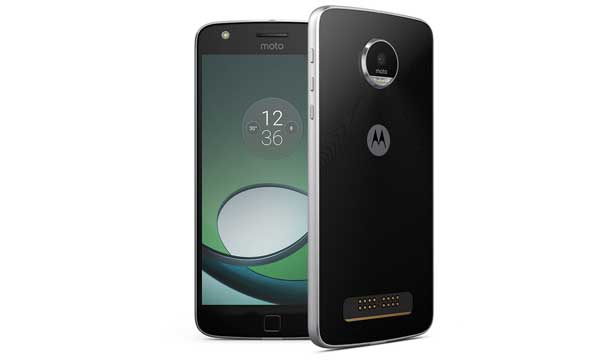
After the successful Android Oreo soak test, Motorola rolls out the stable Android 8.0 Oreo update to Moto Z Play. The Oreo OTA update with build number OPN27.76-12-22 starts getting on Moto Z Play (XT1635). The update file (Blur_Version.27.21.24.addison.retail.en.US) weighs around 1.12GB in size and includes April 2018 security patch.
Moto Z Play Android 8.0 Oreo update comes with April 2018 security patch, new features and improvements. Though there is no official changelog as of yet, users can enjoy features like Picture-in-Picture mode, Auto-fill, faster startup, Moto experience, notification channel and adaptive icons.
If you have not received a notification message for this update yet, follow the steps below to manually update your phone:
1. Go to Settings > About phone >System updates
2. Select ‘Yes, I’m in’. Once the software has downloaded, select ‘Install now’.
3. Once the software is installed, your phone will re-start automatically.
To install the Oreo update (Blur_Version.27.21.24.addison.retail.en.US) manually on Moto Z Play (XT1635), download it from here (You can also capture the OTA update file from here) and follow below steps.
Warning: We strongly NOT recommend below method to update your device to Oreo, as it may brick your device. Inexperienced users should not proceed with the installation guide.
Installation Instruction:
1. Enable ‘USB Debugging’ on your phone
2. Save the downloaded OTA update file where ADB is installed on your PC.
3. Switch off the phone and press and hold Power + Vol Down buttons to boot into Recovery.
4. In recovery mode, choose ‘Apply update from ADB’ and then connect your phone to PC.
5. Open a command window from where update file is saved.
6. Check your device for proper connection by issuing the below command: adb devices
7. If your device is listed, then issue the below command to sideload.
adb sideload filename.zip [replace filename.zip with original filename]
After the installation process completes, your phone will reboot into Android Oreo. (Source)

Related Posts