

Some times it may be necessary to save an important email message as a PDF file or Word document for future reference.
Here is a simple tutorial on how to save Gmail into a PDF file or Microsoft Word document without using any software.
1. Log in your Gmail account and click on the setting tab (top right corner) and click the Lab.
2. Select ‘Create a Document’ and enable this (see screenshot)
3. Now a new ‘Create a document” feature has been enabled and you can see it in the right side of your Gmail.
4. Now open a Gmail message that you wan to save as PDF or Word document.
5. Then click ‘Create a document’ which will open your Google doc. If want, you can edit your document now. Then save and close your message.
6. Then select your newly saved document and click ‘More actions’ (see screen shot). Then select ‘Export’.
7. Now select an option from the dropdown menu (see screenshot) – PDF, Word document, Open Office, etc. and click ‘Download’ button to save it on your computer.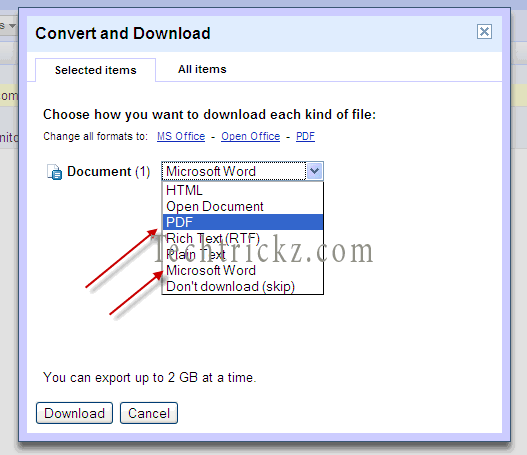
The whole steps requires a few time only. Hope this tutorial will help you save your important email messages as PDF or Word document into your computer.



Comments (23)
I think the feature isn’t available now. However, you can use print feature to save your email as pdf document?
Does this feature still exist? I need it ASAP and haven’t been able to locate it. Please advise!
When pictures are within the gmail body, it will not be included.
I have a table with pictures and text.
The table is there, but no pictures.
??? How to get a copy of this kind of messages????
Is there a way to have the attachments to the e-mail included in the conversion to .pdf, as MS Outlook does, other than manually having to save the attachments and then using “insert pages” in in the .pdf’ed e-mail?
Thanks for the tip. Didn’t realize there is such easy way to download as a PDF.
Thank you! I skipped numbers 6 &7 and just printed the document to pdf and then saved it. Works so well!
Ok, I have gone through this and this tutorial, although well structured, is useless to me. Here is what I found:
Go here: https://mail.google.com/mail/u/0/#settings/labs
Enable “Create a Document”
Go way down all the way to the bottom and click “Save Changes.”
Wait a good while for the change.
Realize that it doesn’t work (at least on my end).
Then note: THIS IS ALL USELESS. CLICK PRINT BUTTON ON MESSAGES YOU WANT SAVED AND USE DESTINATION TO SAVE AS PDF!!! AAAAAAAAAAH!!!
can you not save emails that are not from google e.g. emails that you receive or send to hotmail. help would be grateful
I am trying to save an email with attachments, but when I go through the above process, the attachments are discarded. I’ve tried to save to all types of file formats available. Did anyone have any luck with this?
The image does not export into the doc. Any setting required to have that feature?
It will appear under the ‘More’ tab, top center of the mail window.
Help. All goes well until I enable “Create a document” and save it. When I open gmail message, nothing appears on screen to right of “reply” box, I have reindicated “Create a document” 2 or 3 times and have closed and reopened gmail, but option still doesn’t appear. What to do?
I am having trouble….I see the ‘spring’ icon and when I click on it the options I have are mail settings and mail help……can you please explain a little more. I am obviously new to gmail! THANKS
Hi,
I was not able to do this until I read JK’s response. Thank you. But what does not transfer to either a word doc or PDF are the details: subject, who sent to who and when? It appears to be easier to copy and paste to a word doc. with all the details. Unless I’m missing a step?
Hi, thanks for the comment. Because of Gmail’s new interface, there are slight changes. Now there is now Setting tab, instead it is Option. Just click ‘round spring’ icon (shown right side of your profile name) and choose Lab option. That’s all.
You say the first step to save an important email message as a PDF file is to click the “Settings” tab tab at the upper right hand corner after logging into gmail. Fine and dandy, but there is NO “SETTINGS” TAB in the upper right hand corner. This is bogas because there IS NO SETTING TAB in the upper right corner. Get it together guys !!! RD Sent: Tue Sept 13, 2011 17:17:17
This definately does not work. I have an email with a table and as soon as I create the document, I lose all formating on the table!
this was exactly what i was looking for and so very helpful – just a note – i did not get the ‘create a document’ feature under ‘print all’ as you suggested, i had to open a new window first. THANKS
Thank you very much ! Just what I was looking for…SPOT ON !!
Very helpful indeed… Thanks! 🙂
Brilliant! This is exactly what I needed. Thank you so much!
Good Article. Helped me in saving some important mails.
–meera
Yes, very nice information. This will help me to save my mail in word format. I use this tip and delete all important mail from gmail account.
Comments are closed.