How to Block Ads in Your Notifications on Samsung One UI 8.5
In this guide, we’ll learn how to enable and use Samsung’s new “Block apps with excessive ads” feature on your Android phone. Available with One UI 8.5, this setting blocks intrusive advertisements from appearing in your notifications, improving focus and reducing clutter.
Frequent advertisement notifications are a real nuisance on smartphones. Many of us deal with ads from various apps every day—promoting products, sales, or services. These intrusive notifications clutter the panel and become annoying, unwanted interruptions to focus and productivity.
To crumble the ads in your notification, Samsung brings a smart feature to their Android smartphone with the latest “Block apps with excessive ads” feature. This new feature puts apps that send frequent advertisement notifications into deep?sleep mode, stopping them from cluttering your notification panel.
Samsung’s One UI 8.5 includes a hidden but powerful “Block apps with excessive ads” option to stop ad notifications. It’s tucked away in settings, but once enabled it can greatly reduce notification spam. Here’s how to locate and use it.
How to Enable and Use One UI 8.5’s Block Apps with Excessive Ads Feature
Note: As of this writing, One UI 8.5 is in beta for the Galaxy S25, S25 Plus, and S25 Ultra. If you don’t have one of those phones or avoid beta software, the feature should arrive with the public One UI 8.5 release, likely in early 2026.
1. Open the Settings app on your Samsung Galaxy phone.
2. Tap Device care.
3. Tap the three-dot menu (top right), then choose Settings.
4. Tap Block apps with excessive ads.
5. Turn on Intelligent blocking to get the strongest ad protection.
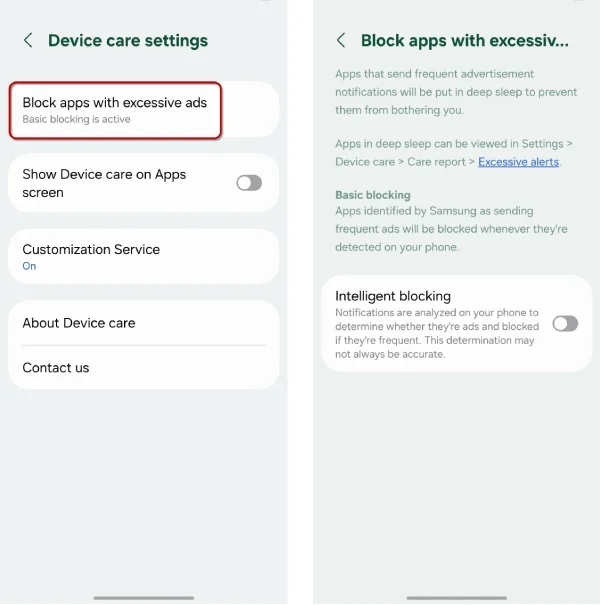
The ad-blocking is enabled by default in Basic mode, which blocks apps Samsung has flagged for frequent/excessive ads when detected. Samsung doesn’t list which or how many apps are flagged, but they’re likely well-known apps notorious for notification advertising.
Important: If you turn on Intelligent blocking for maximum ad protection, it analyzes notifications in real time and blocks frequent ads. If you don’t like Samsung inspecting your notifications, stick with Basic blocking. For the fewest ad notifications, enable Intelligent blocking.

Related Posts