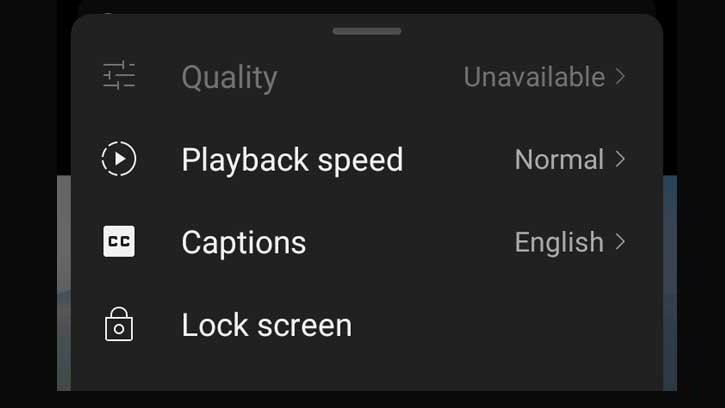
How to Speed Up YouTube Videos, Including Ads Up to 16x
Want to watch YouTube videos—and the ads inside them—much faster than the built-in controls allow? This guide lets you know how to speed up YouTube videos. By default, YouTube limits playback speed for most users to 2× (and Premium users see up to 4×). With a simple browser console tweak, you can push playback up to 16× (or slow down to 1/16 = 0.0625×).
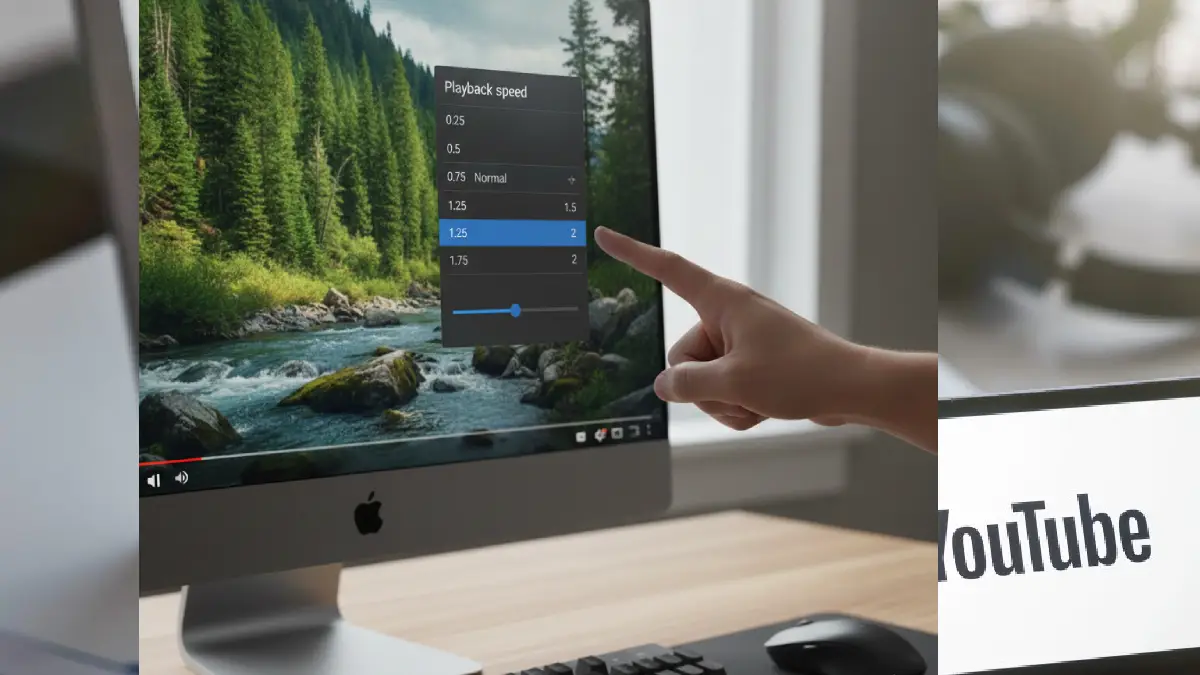
This method works locally in your browser by changing the HTML video element’s playbackRate property, so it affects only your playback session and won’t modify YouTube’s servers or other users’ experiences. It’s especially useful for quickly scanning long tutorials, lectures, or playlists, and it forces ads to play at the same speed as the main video so they won’t interrupt your pace.
Table of Contents
Benefits of Increasing YouTube playback Rate
- Save time: speed through long tutorials, lectures, or playlist marathons.
- Keep ad speed consistent: this trick speeds ads the same as the main video, so ads won’t force you back to 1×.
- Flexible: you can set any playback rate from 0.0625× up to 16×.
Important Note
This method runs in your browser’s developer console and affects only your local playback. It does not change YouTube’s servers or other users’ playback.
Use responsibly—extreme speeds can make audio incomprehensible and may break some interactive video features.
ALSO READ:Watch YouTube Premium for Free on Android
What You’ll Need to Change Playback Speed
- A desktop browser: Chrome or Edge (other Chromium browsers often work similarly).
- Basic comfort opening the browser console (no programming required).
Step-by-step: Speed up YouTube Videos, Including Ads to 16×
1. Open YouTube in Chrome or Edge browser and start the video you want to speed up.
2. Open the browser console:
- Windows or Linux: Ctrl + Shift + J
- Mac: Cmd + Option + J
3. In the Console tab, type the following command and press Enter: $('video').playbackRate = x
- Replace x with your desired playback speed (for example, 16). Example to set 16×:
$('video').playbackRate = 16
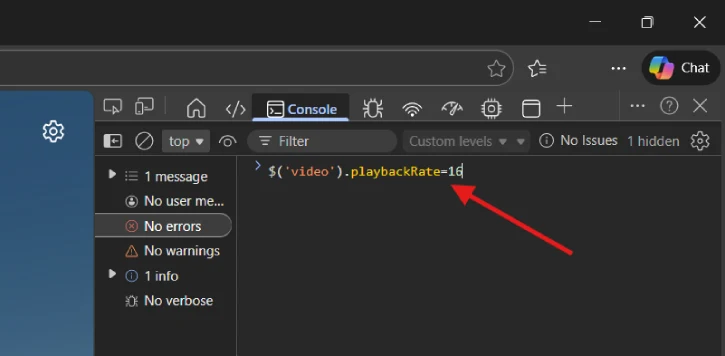
The current video and any in-video ads will play at that rate. When the page is refreshed, playback speed returns to YouTube’s default.
How it Works
The browser exposes HTML video elements to JavaScript. The console command accesses the video element(s) on the page and sets their playbackRate property, which controls speed. Since ads are also served as video elements, they receive the same rate.
Tips and Best Practices
- Start small: try 1.5× or 2× first, then increase if comfortable. Very high speeds (8×–16×) make speech hard to follow.
- If the video changes (new page or reload), reapply the command.
- To slow down instead, use a value less than 1 (for example, 0.5).
- Use keyboard shortcuts to open the console faster if you plan to reuse this often.
- Don’t paste commands from untrusted sources into your console—only run the exact command shown above.
Troubleshooting
Console says $(‘video’) is null: make sure the video is playing or the page has loaded, then try again.
Playback reverts for some ads: some ad players create and replace video elements dynamically; re-running the command after the ad starts usually fixes this.
Audio or playback glitches at extreme speeds: reduce the rate to a lower value.
Bonus Tip
Here’s a one-click bookmarklet that sets YouTube (and its ads) to 8× playback.
1. Create a new bookmark in your browser.
2. For the URL (location), paste this single line:javascript:(function(){var v=document.querySelector('video');if(v){v.playbackRate=8;alert('Playback set to 8×');}else{alert('No video element found. Play a video and try again.');}})();
3. Save the bookmark. When watching a YouTube video, click the bookmark to apply 8× speed. If the page reloads or a new video/ad starts, click again.
Conclusion
Using a one-line console command you can control YouTube playbackRate from 0.0625× up to 16× and have ads play at the same speed as your video. It’s a quick local tweak for saving time or reviewing content faster—just reapply when pages reload and use moderate speeds for comprehension.

Related Posts