
Command Palette Dock in PowerToys 0.98: Windows 11’s New Second Taskbar Explained
Windows 11 just got a powerful new feature. PowerToys version 0.98 introduces the Command Palette Dock, a customizable second taskbar that can be placed on any edge of your screen—top, bottom, left, or right. Unlike the standard Windows taskbar, this tool combines app launching, system monitoring, and quick commands into one elegant interface inspired by macOS.
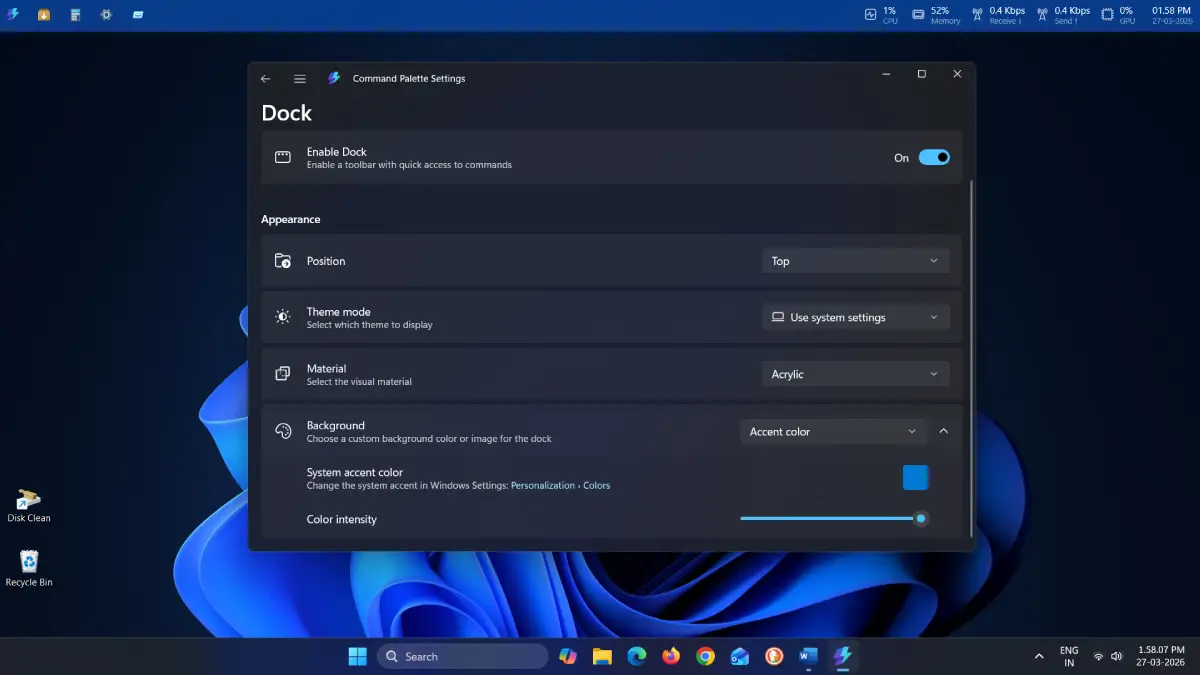
Table of Contents
What Is the Command Palette Dock?
The Command Palette Dock is an optional tool that displays live system stats (CPU, GPU, memory, and network usage) alongside pinned commands and apps. It functions as a quick-access launcher, similar to Spotlight on macOS, letting you run system commands, open applications, and trigger utilities from a single interface.
The Dock comes pre-configured with useful items: a Command Palette shortcut, WinGet app installer integration, real-time system resource monitoring, and a clock with date display. All elements are interactive—click any system stat to view animated graphs or jump directly to Task Manager.
How to Enable Command Palette Dock
1. Install PowerToys (if not already installed) via the Microsoft Store, GitHub, or running the WinGet command in Command Prompt: winget install Microsoft.PowerToys
2. Open PowerToys and navigate to System Tools > Command Palette.
3. Click Command Palette Settings on the right side.
4. Select Dock (preview) and toggle Enable Dock.
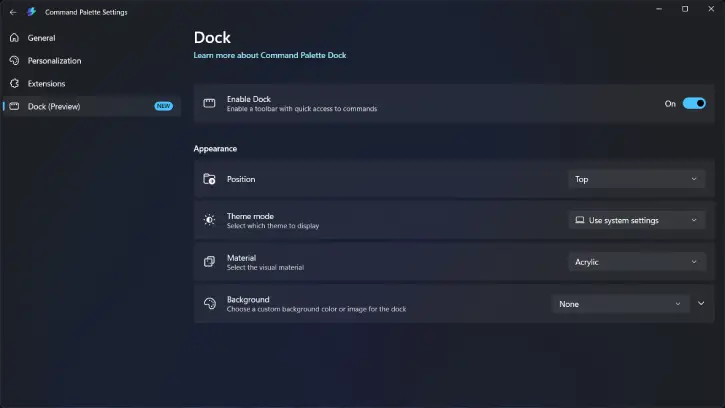
The Dock appears on your screen instantly—no restart required. You can now customize the dock from its settings menu. Change the theme, color and appearance to make unique. Also, change the position of the dock from top to left, right, or bottom.
How to Add Items (Apps, Commands and System Components to Your Dock
To pin items, simply open the Command Palette using Win + Alt + Space, search for what you need, then press Ctrl + K > Pin to Dock or use the “More” menu.
You can pin apps, commands, extensions, and specific actions. And, rearrange items by dragging and dropping.
For a cleaner look, right-click the Dock, select Edit Dock, then disable “Show titles” for an icon-only layout.
Extending Functionality with Extensions
PowerToys ships with built-in extensions, but community extensions available on WinGet and the Microsoft Store unlock even greater potential. Extensions install instantly without requiring restarts, transforming the Dock into a comprehensive workflow tool.
Important Considerations
Before adding the dock to your Windows 11, note that it will occupies your screen’s real estate, so it may not be suitable on 16:10 displays.
Also, command Palette process typically consumes 200–260 MB of RAM with some CPU usage. It can be an issue on low end PCs.
Battery-powered or low-power devices may want to reconsider, while desktop users with ample resources will find it worthwhile.
Conclusion
The Command Palette Dock is still in preview, but it’s one of the most practical Windows additions in years. Whether you’re managing files, launching apps, or monitoring system performance, this customizable dock fundamentally improves how you interact with Windows 11.

Related Posts


Comments (0)